
Janus Split Screen#
Janus is a Linux tool for local multiplayer. It runs one copy of a game per player, side by side on one screen, each with its own controller. Games that only have online co-op become couch co-op: every player gets their own copy of the game, and the copies join each other as if they were on different computers.
How Janus works#
When you start a game with two players, Janus:
- Splits the screen. Each copy of the game runs in its own window (a gamescope window), placed on its part of the screen: top and bottom, side by side, a grid, or one player per monitor.
- Gives each copy one controller. Every copy sees only its player’s pad, as an ordinary Xbox controller. Pressing a button on your pad never moves the other player’s game.
- Keeps the saves apart. Each player plays as a profile. The Steam account’s owner can keep their real saves; everyone else gets their own, which follow them from session to session whichever player number they take.
- Connects the copies. Most handlers have the copies find each other over an emulated Steam network on the same machine, so one player hosts and the others join from the game’s own menu, or are invited automatically.
Drop in, drop out
Join mid-game. Hold Start on a free controller and a new game opens.
Leave any time. Quit your game and the other games fill the screen.
Every game needs a handler, a small script from this site. It decides the details for its game: which build to run, which of these steps it needs, which options to offer (a bigger UI for small screens, for example) and anything the game needs to start cleanly.
Handlers are code. Janus runs them with access to your files and can start processes. Read a handler’s source on its game page before you use it.
Janus needs Linux, Steam, gamescope, and a KDE Plasma desktop on Wayland to place the windows.
The players screen#
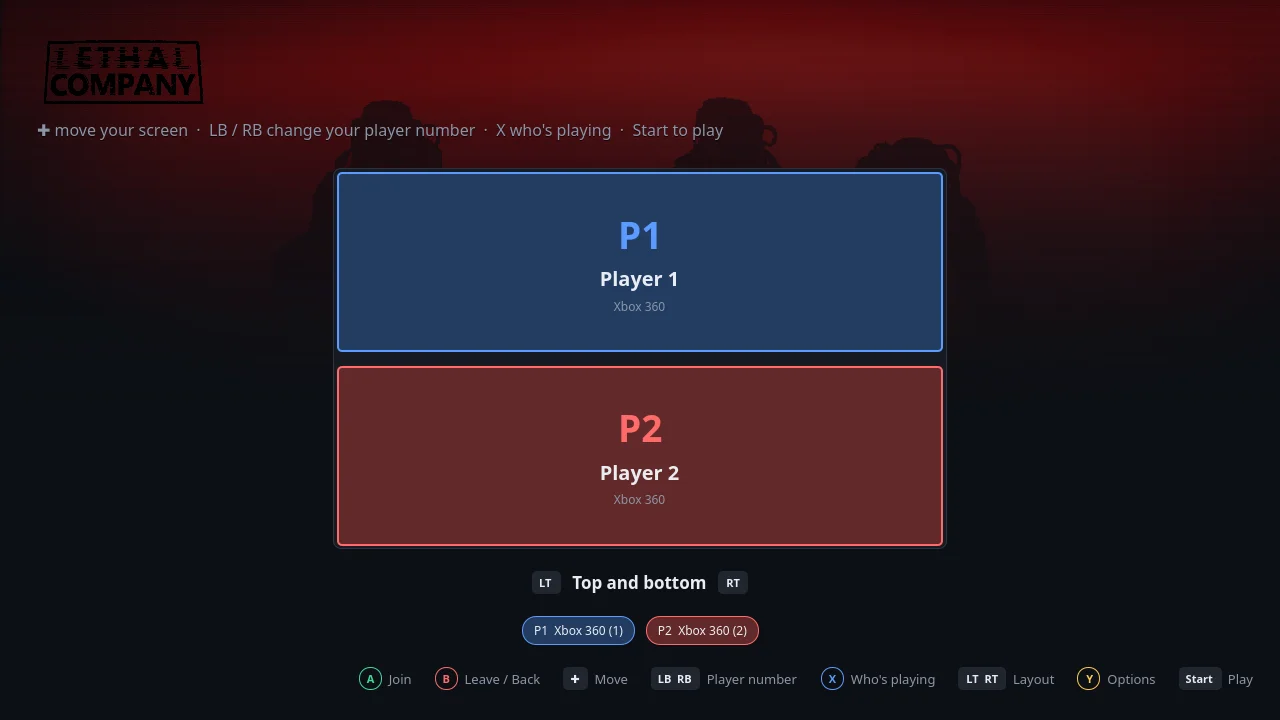
Pick a game and Janus shows its players screen. This is where you say who is playing, how the screen is split, and how the game is set up.
Joining#
Every player presses A on their own controller. Their tile appears with a player number, the profile they play as and their controller’s name.
Arranging the screen#
| Button | What it does |
|---|---|
| LT / RT (any pad) | Changes the layout: top and bottom, side by side, grids for more players, and with several monitors one per screen or across screens. |
| D-pad | Moves your own tile, swapping places with the player that way. |
| LB / RB | Changes your own player number. The other players move up or down to make room. |
Janus remembers the layout you chose for each number of players, per game. Player 1 is the host when the game needs one, so whoever will host takes number 1.
The player number rarely matters beyond that: your name and saves come from your profile (below), not your number.
Who’s playing#
X on your pad picks the profile you play as: the Steam account, an existing player, or New player…. Each profile has its own name in the game and its own saves, and the list shows what each one has saved for this game. A pad joins as the profile it played as last time, when that profile is free.
Options#
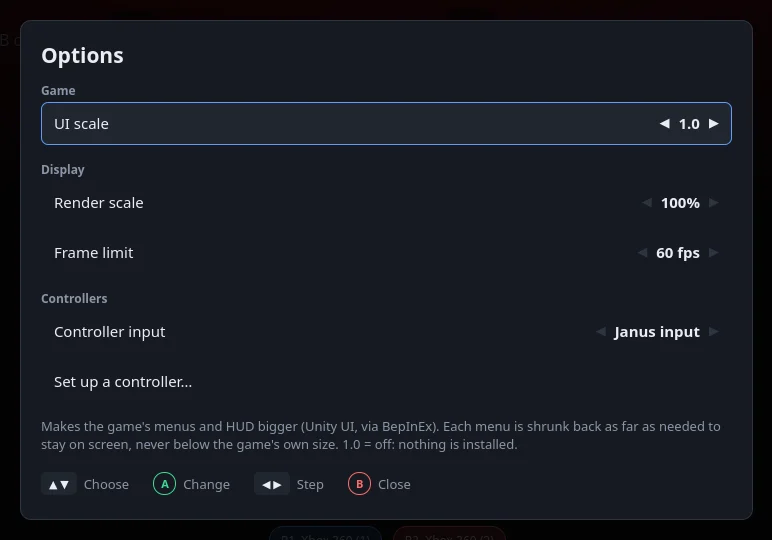
Y opens the game’s options.
| Section | What’s in it |
|---|---|
| Game | The handler’s options, if it has any: a UI scale, a game mode, a server to connect to. The line under the list explains the option you are on. |
| Display | Render scale: draw the game at a lower resolution and scale it up to its tile, for speed. Below 100% you also choose the upscaling filter (FSR, NIS…) and its sharpness. Frame limit: caps each player’s game at 60 fps by default, so no game takes graphics power the others need. |
| Controllers | Controller input: Janus’s own (the default) or Steam Input, when the game allows both. Set up a controller… teaches Janus a pad it doesn’t recognise, one button at a time. |
Your choices are saved per game and used every time you play it.
Playing#
Press Start to play. Janus checks the game is ready (for example, that its Steam Input setting suits the controller mode you chose), then opens one window per player over its tile.
While you play:
- A new player can join. A free controller holding Start for a moment adds a player, if the game allows late joins. The others’ windows make room; nobody restarts.
- A player can leave. When someone quits their game, the remaining players’ windows grow to fill the screen.
- Start brings the games back. If a window ends up behind another one, Start on a playing pad raises every player’s game again.
- Typing with a controller. L3 + R3 opens an on-screen keyboard over your own game, for names, chat or server addresses. Turn it on with On-screen keyboard in the game’s settings in Janus’s desktop window.
- Stopping everything is the Stop all button on Janus’s screen, or Alt+2 on a keyboard. Controllers can’t stop the session by accident.
The mouse and keyboard work on every screen too: click a pad to add or remove it, drag a tile onto another to swap them, and click any hint at the bottom to do what its button does.
Getting handlers#
You don’t need to download anything from this website by hand: Janus talks to it directly. It lists the handlers for your games, installs the ones you pick and tells you when a newer version is out.
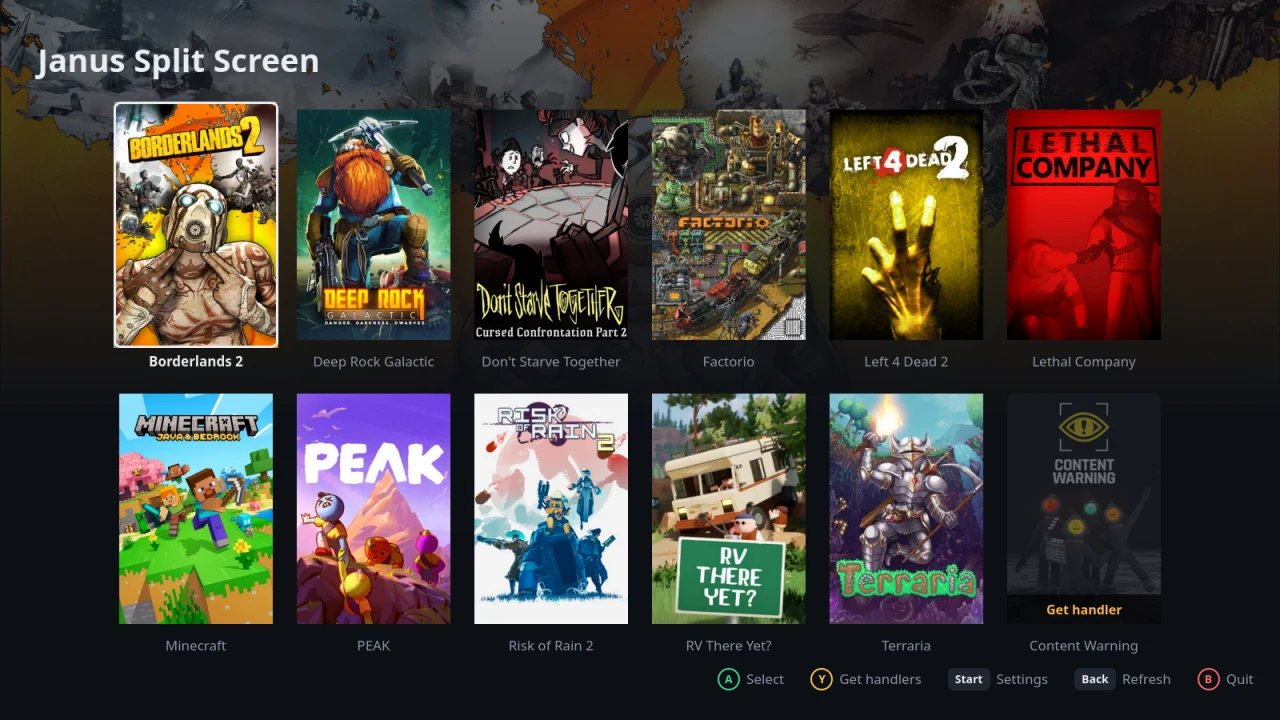
Janus’s games screen shows only games it can play: the ones with a handler, and the games you own whose handler is on this site, marked Get handler. Games with no handler anywhere, which are usually single-player games, aren’t listed. A game with a handler that isn’t installed in Steam shows as Not installed; press A on it to install it in Steam.
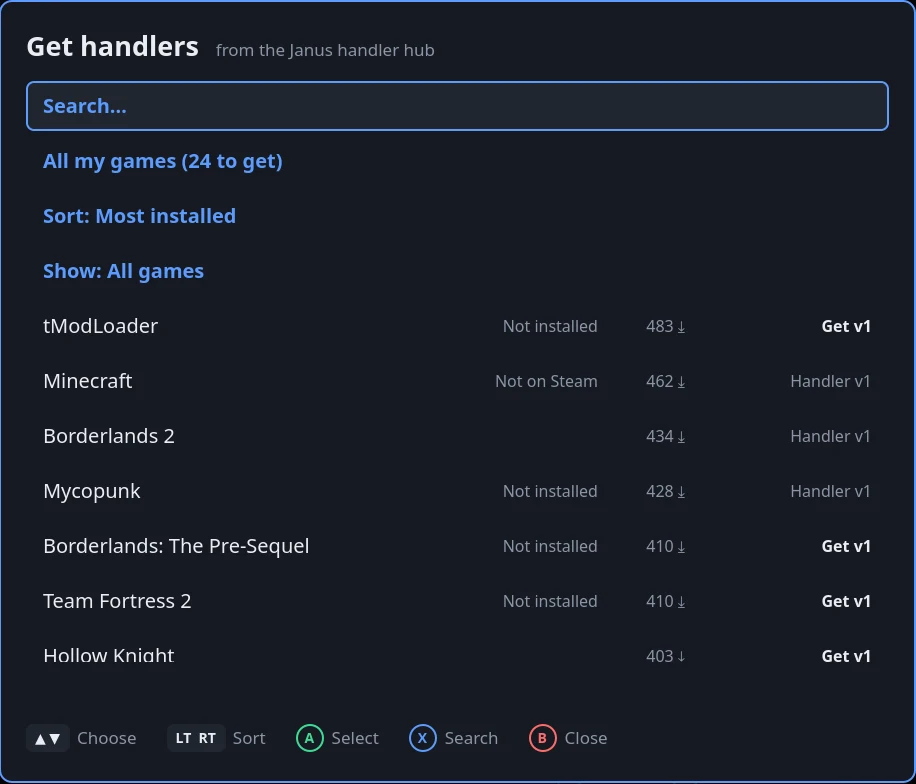
Press Y on the games screen to open Get handlers. The list starts with the most installed handlers. Each row says where the game is (installed, in your Steam library but not installed, not in your library, or not on Steam), how many players installed its handler, and whether you have it. Updates and reinstalls don’t count as installs.
| Row or button | What it does |
|---|---|
| Search… (or X) | Type a name with the controller’s on-screen keyboard (a real keyboard works too). The list follows as you type. |
| All my games | Installs every missing handler for the games in your Steam library, installed or not, and every update. |
| Update N handlers | Shown when newer versions of your handlers are out. |
| Sort (or LT / RT) | Most installed, recently updated, recently added, or A–Z. |
| Show | All games, or only those in your Steam library. |
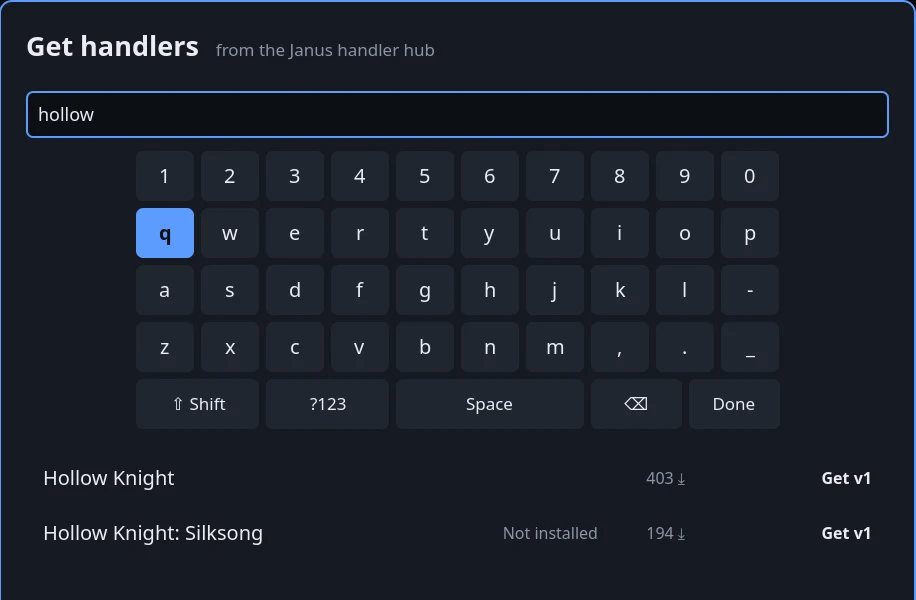
Pick a game to see its handler before you install it: the notes, recent changes, who wrote it, and a QR code of its page on this site. Scan the code with your phone to read the handler’s source from the couch.
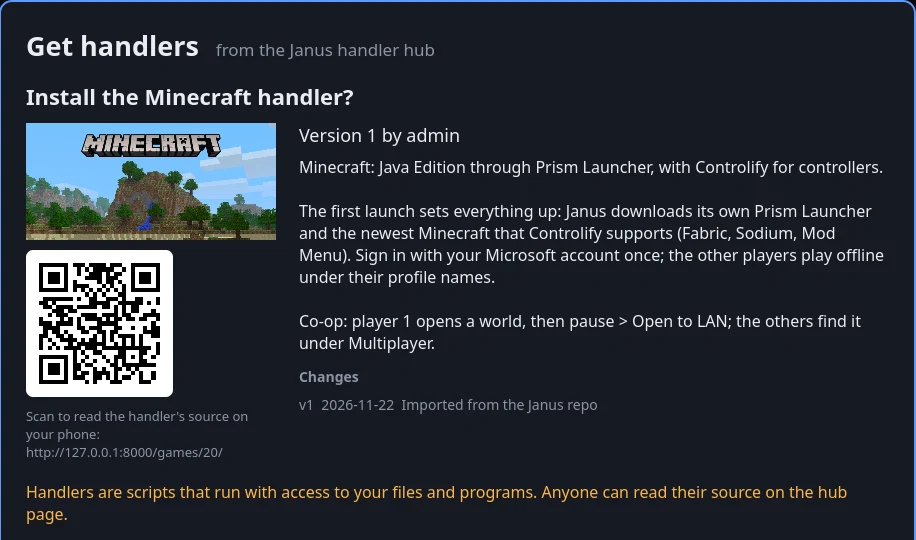
To remove a handler you got from this site, pick its game and press X (Remove handler), then A. The game leaves the games screen, or shows as Get handler again; its settings and the players’ saves stay.
When Janus starts, it checks for updates in the background. Games whose handler has a newer version get an Update badge, and the Y hint says how many there are.
Good to know#
- Your own handlers win. Janus never overwrites a handler you wrote yourself. It refuses to install over it, so remove yours first.
- Where they go. Handlers are installed in
~/.config/janus/games/, as<game>.jsor as a<game>/folder withhandler.jsandpayload/. To install one by hand, download it from its game page and put it there (unzip a.zipinto<game>/). Uninstalling Janus asks whether to keep them along with your settings and saves.